NMRhub_SSH_Troubleshooting
SSH Troubleshooting
NMRhub now requires an SSH key pair to connect. Use SSH / SFTP / rsync and tools like FileZilla to connect to NMRhub virtual machines (VMs).
Where is my private key?
After following the instructions at NMRbox User Dashboard SSH Key Setup, your private key should be at:
- On Mac/Linux:
$HOME/.ssh/id_ed25519 - On Windows:
%HOMEDRIVE%%HOMEPATH%\.ssh\id_ed25519
I have the private key in place, but I can’t connect.
- Try connecting to more than one VM to make sure it’s not just an issue with that specific VM. (Please let us know if you can SSH to one VM but not another via support@nmrbox.org).
- Use
ssh -vvvto verify if SSH is attempting to use your private key.
It’s trying to use the key, but it still doesn’t work.
If you can’t connect after uploading your SSH key, verify the following commands give the same result. Windows users should run these commands from PowerShell:
ssh-keygen -lf $HOME/.ssh/id_ed25519
ssh-keygen -lf $HOME/.ssh/id_ed25519.pub
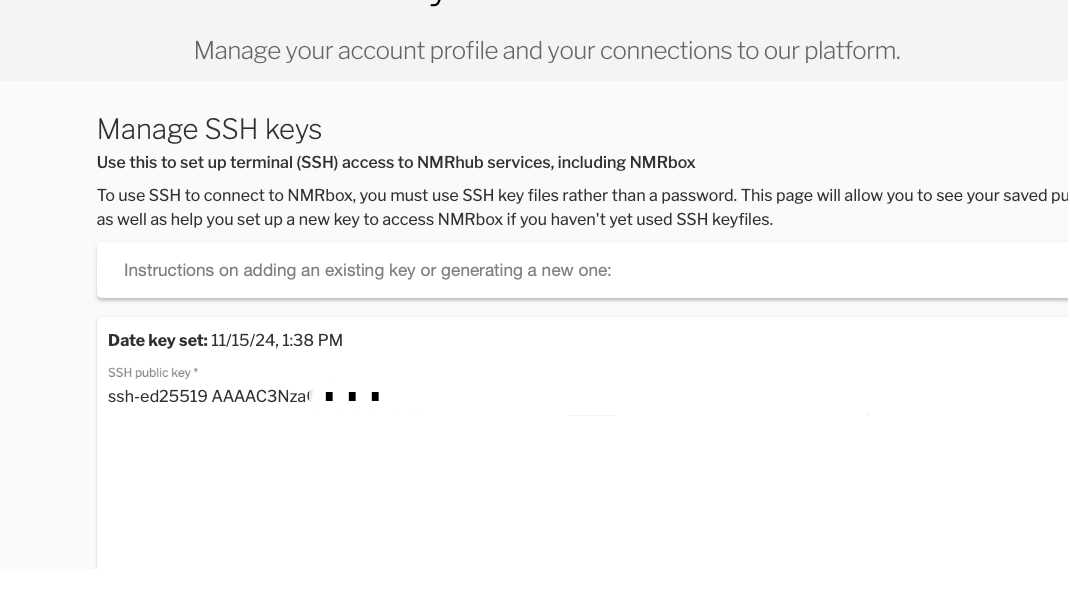
Ensure the key listed at NMRbox User Dashboard SSH Key matches your $HOME/.ssh/id_ed25519.pub.
Home Directory Permissions
If your home directory is writable by anyone other than you, SSH will not work. Connect via VNC and run:
ls -l ~
If w appears after the first group of permissions (e.g., drwx), use the following command to correct it:
chmod go-w ~
How do I use a private key with rsync?
Add the following option to your rsync command:
-e "ssh -i /path/to/your/private_key"
How do I use a private key with sftp?
Add the following option to your sftp command:
-i /path/to/your/private_key
How do I use a private key with FileZilla?
Go to FileZilla’s Site Manager and make the following settings in the General tab. You can leave the port blank, as it defaults to the correct value (22).
- Protocol: SFTP - SSH File Transfer Protocol
-
Host: element.nmrbox.org 1
- Port:** [Leave blank]
- Logon Type: Key file
- User: username
- Key file: local path/.ssh/id_ed25519
How do I use a private key with WinSCP?
SSH Key Setup for Multi-User Shared Account
This guide covers setting up individual SSH keys for multiple users who share a single system account, with password-protected keys and convenient SSH config entries.
Overview
When multiple people share one account on a machine, each person should have their own SSH key pair for security and accountability. This setup allows:
- Each user to have a password-protected private key
- Easy identification of who’s connecting
- Simple login with SSH config shortcuts
Part 1: Generate Individual SSH Keys
Each user should generate their own key pair on the shared machine.
Step 1: Create a key pair with a descriptive name
ssh-keygen -t ed25519 -C "your-email@example.com" -f ~/.ssh/id_ed25519_username
Options explained:
-t ed25519- Uses the modern Ed25519 algorithm (recommended)-C "your-email@example.com"- Adds a comment to identify the key-f ~/.ssh/id_ed25519_username- Specifies the filename (replaceusernamewith a meaningful value)
Alternative for older systems: If the server doesn’t support Ed25519, use RSA instead:
ssh-keygen -t rsa -b 4096 -C "your-email@example.com" -f ~/.ssh/id_rsa_username
Step 2: Set a strong passphrase
When prompted, enter a strong passphrase to protect the private key:
Enter passphrase (empty for no passphrase): [type your passphrase]
Enter same passphrase again: [type your passphrase again]
Important: Never leave the passphrase empty! On a multi-user machine where others have access to this key, doing this would let other users log in as you.
Step 3: Verify the keys were created
ls -la ~/.ssh/id_ed25519_username*
You should see two files:
id_ed25519_username- Your private key (keep this secret!)id_ed25519_username.pub- Your public key (safe to share)
Part 2: Install Public Keys on the Server
Step 1: Copy your public key to the server
View your key by running:
cat ~/.ssh/id_ed25519_username.pub
Then add your individual user key to your NMRbox account at https://nmrbox.nmrhub.org/user-dashboard/ssh-key.
Part 3: Configure SSH Client for Easy Access
On the shared user account, configure the local SSH client to know about the different keys available.
Step 1: Edit your SSH config file
On your local machine:
nano ~/.ssh/config
Step 2: Add a host entry
Add this configuration (adjust for your setup) - one record as shown below per user on the machine:
Match user inewton
    IdentityFile ~/.ssh/id_ed25519_inewton
    IdentitiesOnly yes

Match user aeinstein
    IdentityFile ~/.ssh/id_ed25519_aeinstein
    IdentitiesOnly yes

# etc ...
Options explained:
- Match user inewton - Match your nmrbox username
- IdentityFile - Path to your private key
IdentitiesOnly yes- Only use the specified key (prevents trying other keys)
Step 3: Set proper permissions
chmod 600 ~/.ssh/config
Step 4: Test the connection
ssh inewton@krypton.nrmbox.org (or other avaible NMRbox server)
You’ll be prompted for your key’s passphrase (not the server password). After entering it once, the connection should be established.
As you’ll have one record for each user with a key on this system, each user can use their own alias to SSH into their own account using the proper key.
Troubleshooting
“Permission denied (publickey)”
- Check file permissions:
~/.sshshould be 700,authorized_keysshould be 600 - Ensure you’re using the correct username and key file
- Try with verbose mode:
ssh -v myserver
“Bad permissions” errors
chmod 700 ~/.ssh
chmod 600 ~/.ssh/config
chmod 600 ~/.ssh/id_ed25519_*
chmod 644 ~/.ssh/*.pub
Can’t remember which key is which
# View public key fingerprint
ssh-keygen -lf ~/.ssh/id_ed25519_username.pub

# List all keys in SSH agent
ssh-add -l
-
accesspool.nmrhub.org can be used for FileZilla / scp. The name maps to two different hosts, and both copy utilities will try both if either is offline for maintenance. ↩